Logto は、モダンなアプリや SaaS 製品向けに設計された Auth0 の代替です。 Cloud と オープンソース の両方のサービスを提供し、アイデンティティと管理 (IAM) システムを迅速に立ち上げるのに役立ちます。認証 (Authentication)、認可 (Authorization)、マルチテナント管理を すべて一つに まとめて楽しんでください。
Logto Cloud で無料の開発テナントから始めることをお勧めします。これにより、すべての機能を簡単に探索できます。
この記事では、iOS (Swift) と Logto を使用して、GitHub (GitHub App) サインイン体験(ユーザー認証 (Authentication))を迅速に構築する手順を説明します。
前提条件
- 稼働中の Logto インスタンス。紹介ページ をチェックして始めてください。
- iOS (Swift) の基本的な知識。
- 使用可能な GitHub (GitHub App) アカウント。
Logto でアプリケーションを作成する
Logto は OpenID Connect (OIDC) 認証 (Authentication) と OAuth 2.0 認可 (Authorization) に基づいています。これは、複数のアプリケーション間でのフェデレーテッドアイデンティティ管理をサポートし、一般的にシングルサインオン (SSO) と呼ばれます。
あなたの Native app アプリケーションを作成するには、次の手順に従ってください:
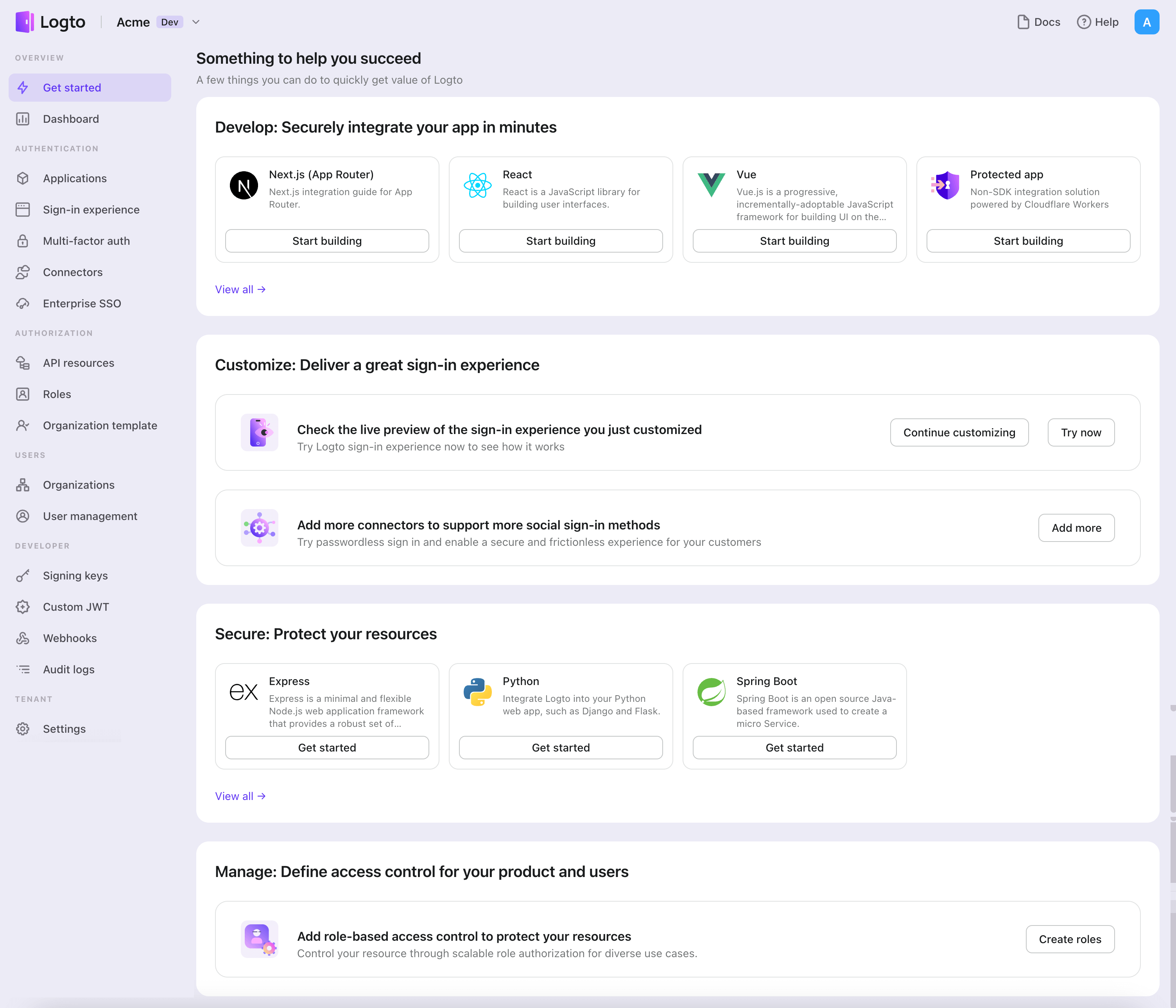
- Logto コンソール を開きます。「Get started」セクションで、「View all」リンクをクリックしてアプリケーションフレームワークのリストを開きます。あるいは、Logto Console > Applications に移動し、「Create application」ボタンをクリックします。
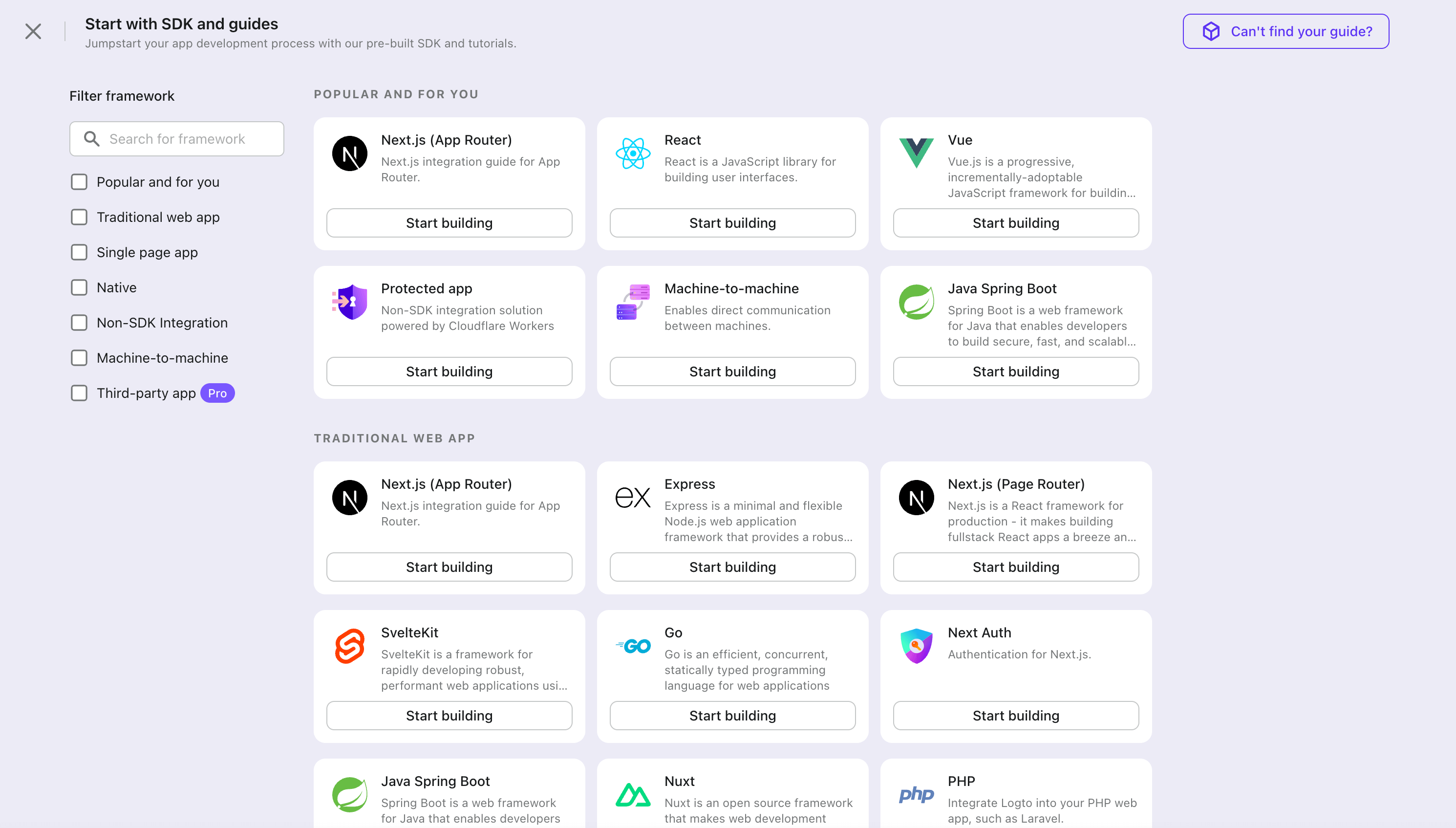
- 開いたモーダルで、左側のクイックフィルターチェックボックスを使用して、利用可能なすべての "Native app" フレームワークをフィルタリングするか、"Native app" セクションをクリックします。"iOS (Swift)" フレームワークカードをクリックして、アプリケーションの作成を開始します。
- アプリケーション名を入力します。例:「Bookstore」と入力し、「Create application」をクリックします。
🎉 タダーン!Logto で最初のアプリケーションを作成しました。詳細な統合ガイドを含むお祝いページが表示されます。ガイドに従って、アプリケーションでの体験を確認してください。
iOS (Swift) SDK を統合する
Logto SDK を依存関係として追加する
Logto Swift SDK のサポートされている最小 iOS バージョンは iOS 13 です。
Logto Swift SDK には 2 つの主要バージョンがあります:
- v2:サインイン体験を
ASWebAuthenticationSession(システムブラウザ)で開きます。これによりパスキーサインインが可能になり、ブラウザセッションが共有されます。v2 ではネイティブソーシャルプラグインターゲットが削除されていますが、ソーシャルコネクターは引き続きブラウザ経由で動作します。ネイティブの WeChat や Alipay SDK 連携が必要な場合は v1 をご利用ください。 - v1:サインイン体験を埋め込み WebView で開きます。これはネイティブソーシャルプラグインターゲットに必要ですが、パスキーサインイン には対応していません(WebView はパスキーの基盤となる WebAuthn をサポートしていません)。
このガイドは両バージョンに対応しています。下記のタブでバージョンを選択してください。選択はガイド全体で同期されます。
Swift Package Manager で Logto SDK を依存関係として追加するには、以下の URL を使用してください。
https://github.com/logto-io/swift.git
Xcode 11 以降、Swift パッケージを直接インポート できます。追加ツールは不要です。
Xcode でパッケージバージョンを尋ねられたら、統合したいバージョンを選択してください:
- v2
- v1
バージョンには最新の v2 リリースを使用してください。最新の v2 バージョンは 2.0.0 です。
Package.swift を直接使用する場合:
// Logto Swift SDK を依存関係として追加
.package(url: "https://github.com/logto-io/swift.git", from: "2.0.0")
ネイティブソーシャルプラグインターゲットが必要な場合は、最新の v1 リリースを使用してください。最新の v1 バージョンは 1.2.0 です。
Package.swift を直接使用する場合:
// Logto Swift SDK を依存関係として追加
.package(url: "https://github.com/logto-io/swift.git", from: "1.2.0")
Carthage および CocoaPods には、技術的な理由により現時点では対応していません。
Carthage
Carthage は ビルドに xcodeproj ファイルが必要 です。今後回避策を検討します。
LogtoClient を初期化する
LogtoConfig オブジェクトを使用して LogtoClient インスタンスを作成することで、クライアントを初期化します。
import Logto
import LogtoClient

let config = try? LogtoConfig(
  endpoint: "<your-logto-endpoint>", // 例: http://localhost:3001
  appId: "<your-app-id>"
)
let client = LogtoClient(useConfig: config)
デフォルトでは、ID トークンやリフレッシュ トークンのような資格情報を Keychain に保存します。したがって、ユーザーは戻ってきたときに再度サインインする必要はありません。
この動作をオフにするには、usingPersistStorage を false に設定します:
let config = try? LogtoConfig(
  // ...
  usingPersistStorage: false
)
サインイン
詳細に入る前に、エンドユーザー体験の概要を簡単にご紹介します。サインインプロセスは次のようにシンプルにまとめられます:
- アプリがサインインメソッドを呼び出します。
- ユーザーは Logto のサインインページにリダイレクトされます。ネイティブアプリの場合は、システムブラウザが開かれます。
- ユーザーがサインインし、アプリ(リダイレクト URI として設定)に戻されます。
リダイレクトベースのサインインについて
- この認証 (Authentication) プロセスは OpenID Connect (OIDC) プロトコルに従い、Logto はユーザーのサインインを保護するために厳格なセキュリティ対策を講じています。
- 複数のアプリがある場合、同じアイデンティティプロバイダー (Logto) を使用できます。ユーザーがあるアプリにサインインすると、Logto は別のアプリにアクセスした際に自動的にサインインプロセスを完了します。
リダイレクトベースのサインインの理論と利点について詳しく知るには、Logto サインイン体験の説明を参照してください。
リダイレクト URI の設定
- v2
- v1
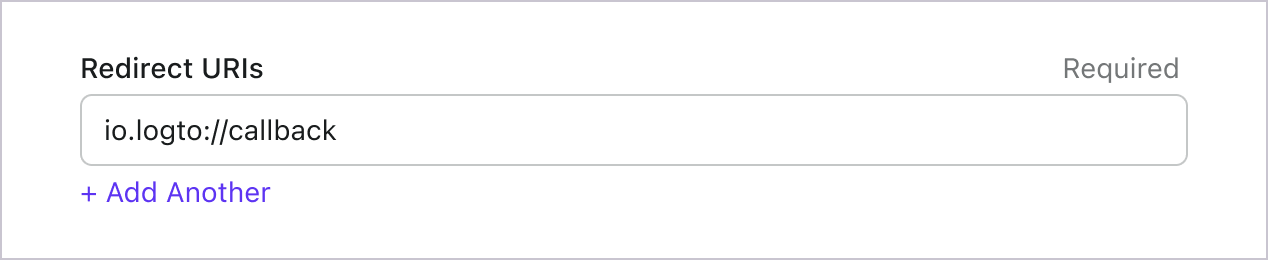
Logto コンソールのアプリケーション詳細ページに切り替えましょう。リダイレクト URI io.logto.app://callback を追加し、「変更を保存」をクリックします。
v2 では、サインイン体験は ASWebAuthenticationSession(システムブラウザ)で開かれ、リダイレクトは OS レベルのコールバックマッチングを通じてアプリに戻されます。io.logto.app://callback のようなカスタムスキームのリダイレクト URI を使う場合、アプリの Info.plist にはスキーム部分(io.logto.app)のみを登録し、Logto アプリケーションの Redirect URIs には完全なリダイレクト URI を追加してください。
Xcode でアプリのターゲットを開き、Info を選択し、URL Types を展開して、URL Schemes に io.logto.app を追加します。Info.plist を直接編集する場合は、以下を追加します:
<key>CFBundleURLTypes</key>
<array>
  <dict>
    <key>CFBundleTypeRole</key>
    <string>Editor</string>
    <key>CFBundleURLName</key>
    <string>io.logto.app</string>
    <key>CFBundleURLSchemes</key>
    <array>
      <string>io.logto.app</string>
    </array>
  </dict>
</array>
v2 のブラウザフローでは、LogtoClient.handle(url:) を呼び出す必要はありません。このプラグインハンドオフ API は埋め込み WebView フローとともに削除されました。
カスタムスキームの代わりに Universal Links を使う?
https://example.com/callback のような HTTPS リダイレクト URI も利用できます:
- アプリに Associated Domains 機能を追加します。
webcredentials:example.comを設定し、iOS 17.4 以降でASWebAuthenticationSessionが HTTPS コールバックをマッチできるようにします。- 同じ URL で認証セッション外でも Universal Link としてアプリを開きたい場合は、
applinks:example.comを設定し、ドメインとパスに有効なapple-app-site-associationファイルをホストします。 - Logto アプリケーションの Redirect URIs に HTTPS URI を追加します。
signInWithBrowserに同じ URI を渡します。
iOS 17.4 以降では、SDK は ASWebAuthenticationSession の HTTPS コールバックマッチング API を利用するため、HTTPS リダイレクトで自動的にセッションを完了・終了できます。古い iOS バージョンでは、認可リクエストで HTTPS リダイレクト URI を使えますが、Universal Link コールバックをアプリ側で処理しない限りセッションが自動で閉じない場合があります。古い iOS バージョンで自動完了が必要な場合は、互換性のためにカスタムスキームリダイレクトも残しておいてください。
Logto コンソールのアプリケーション詳細ページに切り替えましょう。リダイレクト URI io.logto://callback を追加し、「変更を保存」をクリックします。
iOS SDK の Redirect URI は内部利用のみです。コネクターから要求されるまで Custom URL Scheme を追加する 必要はありません。
サインインとサインアウト
.signInWithBrowser(redirectUri:) を呼び出す前に、Admin Console でリダイレクト URI
が正しく設定されていることを確認してください。 :::
- v2
- v1
v2 では、client.signOut(postLogoutRedirectUri:) を使うと完全なサインアウトが実行されます:ローカル認証情報のクリア、リフレッシュ トークン (Refresh token) の取り消し、システムブラウザでエンドセッションエンドポイントを開いて Logto セッションを終了します。その後、ブラウザはサインアウト後リダイレクト URI を通じてアプリに戻ります。利用前に Logto Console のアプリケーション詳細ページでサインアウト後リダイレクト URI io.logto.app://signed-out を追加し、「Save changes」をクリックしてください。サインアウト後リダイレクト URI にはサインイン時に登録したカスタムスキームを使えます。
SwiftUI アプリの例:
// コメントは翻訳済み
struct ContentView: View {
  @State var isAuthenticated: Bool

  private let redirectUri = "io.logto.app://callback"
  private let postLogoutRedirectUri = "io.logto.app://signed-out"

  init() {
    isAuthenticated = client.isAuthenticated
  }

  var body: some View {
    VStack {
      if isAuthenticated {
        Button("Sign Out") {
          Task { [self] in
            let error = await client.signOut(postLogoutRedirectUri: postLogoutRedirectUri)
            if let error = error {
              print(error)
              return
            }
            isAuthenticated = false
          }
        }
      } else {
        Button("Sign In") {
          Task { [self] in
            do {
              try await client.signInWithBrowser(redirectUri: redirectUri)
              isAuthenticated = true
            } catch let error as LogtoClientErrors.SignIn {
              // サインイン中にエラーが発生
            } catch {
              // その他のエラー
            }
          }
        }
      }
    }
  }
}
- サインアウト後リダイレクト URI なしで
client.signOut()を呼ぶこともできます。この場合 Console 側の設定は不要です:ブラウザに Logto サインアウトページが表示され、ユーザーは手動で閉じてアプリに戻ります。 - UI コンテキストが利用できない場合は、
client.clearCredentials()でローカル認証情報のクリアとリフレッシュ トークン (Refresh token) の取り消しが可能です。ただし、この場合ブラウザ上の Logto セッションは残るため、次回のsignInWithBrowserでそのセッションを使ってサイレントサインインされる場合があります。
client.signInWithBrowser(redirectUri:) でユーザーのサインイン、client.signOut() でサインアウトができます。
SwiftUI アプリの例:
// コメントは翻訳済み
struct ContentView: View {
  @State var isAuthenticated: Bool

  init() {
    isAuthenticated = client.isAuthenticated
  }

  var body: some View {
    VStack {
      if isAuthenticated {
        Button("Sign Out") {
          Task { [self] in
            await client.signOut()
            isAuthenticated = false
          }
        }
      } else {
        Button("Sign In") {
          Task { [self] in
            do {
              try await client.signInWithBrowser(redirectUri: "io.logto://callback")
              isAuthenticated = true
            } catch let error as LogtoClientErrors.SignIn {
              // サインイン中にエラーが発生
            } catch {
              // その他のエラー
            }
          }
        }
      }
    }
  }
}
チェックポイント: アプリケーションをテストする
これで、アプリケーションをテストできます:
- アプリケーションを実行すると、サインインボタンが表示されます。
- サインインボタンをクリックすると、SDK がサインインプロセスを初期化し、Logto のサインインページにリダイレクトされます。
- サインインすると、アプリケーションに戻り、サインアウトボタンが表示されます。
- サインアウトボタンをクリックして、トークンストレージをクリアし、サインアウトします。
GitHub (GitHub App) コネクターを追加する
迅速なサインインを有効にし、ユーザーコンバージョンを向上させるために、アイデンティティプロバイダー (IdP) として iOS (Swift) を接続します。Logto ソーシャルコネクターは、いくつかのパラメーター入力を許可することで、この接続を数分で確立するのに役立ちます。
ソーシャルコネクターを追加するには、次の手順に従ってください:
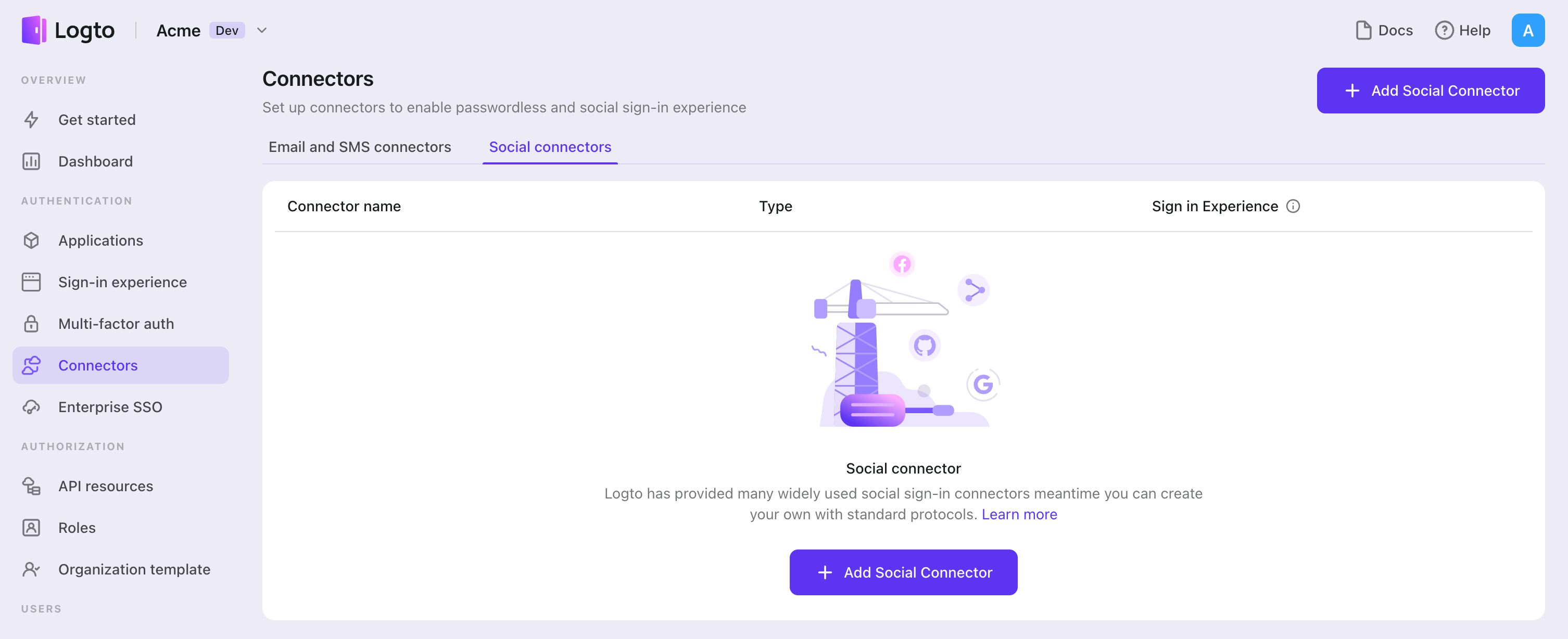
- Console > Connectors > Social Connectors に移動します。
- 「Add social connector」をクリックし、「GitHub (GitHub App)」を選択します。
- README ガイドに従い、必要なフィールドを完了し、設定をカスタマイズします。
インプレースコネクターガイドに従っている場合は、次のセクションをスキップできます。
GitHub (GitHub App) を設定する
ステップ 1: GitHub App を作成する
GitHub を認証 (Authentication) プロバイダーとして利用する前に、GitHub 上で GitHub App を作成し、OAuth 2.0 資格情報を取得する必要があります。
- GitHub にアクセスし、アカウントでサインインします。必要に応じて新しいアカウントを作成してください。
- Settings > Developer settings > GitHub Apps に移動します。
- New GitHub App をクリックして新しいアプリケーションを登録します:
- GitHub App name:アプリの一意な名前を入力します。名前は 34 文字以内で、GitHub 全体で一意である必要があります。
- Homepage URL:アプリケーションのホームページ URL を入力します。
- Callback URL:Logto の GitHub コネクターから Callback URI をコピーし、ここに貼り付けます。必要に応じて複数のコールバック URL を追加できます。ユーザーが GitHub でサインインした後、ここに認可コード付きでリダイレクトされ、Logto が認証 (Authentication) を完了します。
- Expire user authorization tokens:この項目は チェックしたまま(推奨)にします。これにより、トークンの有効期限とリフレッシュ トークンが有効になり、セキュリティが強化されます。
- Request user authorization (OAuth) during installation:インストール時にユーザーにアプリの認可を求めたい場合は、オプションでチェックします。
- Webhook:Webhook イベントが不要な場合は Active のチェックを外します。認証 (Authentication) のみの用途では通常 Webhook は不要です。
- Permissions でアプリに必要な権限を設定します(詳細は下記ステップ 2 を参照)。
- Where can this GitHub App be installed? では、どの GitHub アカウントのユーザーでも認証 (Authentication) に利用できるようにしたい場合は Any account を選択します。
- Create GitHub App をクリックして GitHub App を作成します。
OAuth Apps とは異なり、GitHub Apps は広範なスコープではなく細かな権限で管理されます。アプリ作成時に GitHub ダッシュボードで権限を設定し、ユーザーは認可 (Authorization) 時に特定のリポジトリへのアクセスを許可します。
GitHub Apps のセットアップ詳細については Registering a GitHub App を参照してください。
ステップ 2: GitHub で権限を設定する
GitHub Apps は OAuth スコープの代わりに細かな権限で管理されます。GitHub App の作成または編集時に GitHub ダッシュボードで権限を設定 する必要があります。これらの権限によってアプリがアクセスできるデータが決まります。
GitHub App の権限の理解
権限は 3 種類に分類されます:
- リポジトリ権限:リポジトリレベルのリソース(コード、課題、プルリクエストなど)へのアクセス
- 組織権限:組織レベルのリソース(メンバー、チーム、プロジェクトなど)へのアクセス
- アカウント権限:ユーザーアカウントデータ(メール、プロフィール、フォロワーなど)へのアクセス
各権限ごとに次のいずれかを選択できます:
- No access:このリソースにアクセスできません
- Read-only:このリソースを読み取りのみ可能
- Read & write:このリソースの読み取りと変更が可能
認証 (Authentication) 用の推奨権限
基本的な「GitHub でサインイン」機能には、最低限次の アカウント権限 を設定してください:
| 権限 | アクセスレベル | 目的 |
|---|---|---|
| Email addresses | Read-only | アカウント作成のためにユーザーのメールアドレスを取得 |
GitHub Apps は、ユーザーの代理で動作する場合、公開プロフィール情報の読み取り権限を暗黙的に持っています。ユーザー名、アバター、公開プロフィール URL などの基本的なプロフィールデータについては明示的な権限リクエストは不要です。
API アクセス用の追加権限
認証 (Authentication) 以外で GitHub API へのアクセスが必要な場合は、GitHub ダッシュボードで該当する権限を追加してください。よくある例は以下の通りです:
| 権限タイプ | 権限 | アクセスレベル | ユースケース |
|---|---|---|---|
| リポジトリ | Contents | Read-only / Read & write | リポジトリのファイルやコードへのアクセス |
| リポジトリ | Issues | Read & write | 課題の作成と管理 |
| リポジトリ | Pull requests | Read & write | プルリクエストの作成と管理 |
| リポジトリ | Metadata | Read-only | リポジトリのメタデータへのアクセス(多くの操作で必須) |
| 組織 | Members | Read-only | 組織メンバーの一覧取得 |
| アカウント | Followers | Read-only | ユーザーのフォロワーやフォロー中ユーザーへのアクセス |
これは一部の例であり、GitHub Apps ではさらに多くの細かな権限がサポートされています。完全な一覧は Permissions required for GitHub Apps を参照してください。
OAuth Apps では Logto コネクターでスコープを設定しますが、GitHub App の権限はすべて GitHub ダッシュボードで管理します。Logto の GitHub コネクターの Scope フィールドは空のままで構いません — GitHub Apps では従来の OAuth スコープは使用しません。
必要な権限を GitHub 側で設定し、ユーザーは認可 (Authorization) 時にアクセス許可を求められます。
ステップ 3: Logto コネクターを設定する
GitHub App を作成したら、その設定ページにリダイレクトされ、資格情報を取得できます。
- GitHub App の設定ページで Client ID をコピーし、Logto の
clientIdフィールドに貼り付けます。 - Client secrets で Generate a new client secret をクリックします。生成されたシークレットをコピーし、Logto の
clientSecretフィールドに貼り付けます。 - Logto で Save and Done をクリックし、アイデンティティシステムと GitHub を接続します。
Client secret は安全に保管し、クライアントサイドのコードで絶対に公開しないでください。GitHub の client secret は紛失した場合に復元できません — 新たに生成する必要があります。
GitHub App の Client ID は App ID とは異なります。必ず設定ページに「Client ID」と表示されているものを使用してください(App ID ではありません)。
ステップ 4: 一般設定
GitHub への接続を妨げることはありませんが、エンドユーザーの認証 (Authentication) 体験に影響する一般的な設定をいくつか紹介します。
プロフィール情報の同期
GitHub コネクターでは、GitHub のユーザー情報から Logto ユーザープロフィールへの同期方法(name、avatar、email など)を設定できます。次のオプションから選択してください:
- サインアップ時のみ同期:ユーザーが初めてサインインしたときにプロフィール情報を一度だけ取得します。
- サインイン時に常に同期:ユーザーがサインインするたびにプロフィール情報を更新します。
GitHub API へのアクセス用トークンの保存(オプション)
GitHub API へのアクセスやユーザー認可での操作(ソーシャルサインインやアカウント連携経由)を行いたい場合は、Logto でトークン保存を有効にしてください:
- GitHub App の設定(ステップ 2)で必要な権限を設定します。
- Logto の GitHub コネクターで Store tokens for persistent API access を有効にします。Logto はアクセストークンとリフレッシュ トークンの両方を Secret Vault に安全に保存します。
GitHub Apps は常にリフレッシュ トークンを発行するため、Logto は両方のトークンを自動的に保存します。アクセストークンは 8 時間で期限切れになりますが、Logto はリフレッシュ トークンを使って新しいアクセストークンを取得でき、最大 6 か月間 API アクセスが途切れません。
ステップ 5: 統合のテスト(オプション)
本番運用前に、GitHub App 統合をテストしてください:
- Logto の開発テナントでコネクターを利用します。
- ユーザーが GitHub でサインインできることを確認します。
- 認可 (Authorization) 時に正しい権限がユーザーに求められることを確認します。
- トークン保存を有効にした場合、アクセストークン(およびリフレッシュ トークン)が正しく保存されていることを確認します。
- 保存されたトークンを使って API コールをテストし、権限が期待通りに機能しているか確認します。
GitHub Apps は、どの GitHub ユーザーアカウントでもすぐに利用できます。他のプラットフォームのようにテストユーザーやアプリ承認は不要です。ただし、アプリが組織にインストールされている場合は、組織オーナーによるインストール承認が必要な場合があります。
設定を保存する
Logto コネクター設定エリアで必要な値をすべて記入したことを確認してください。「保存して完了」または「変更を保存」をクリックすると、GitHub (GitHub App) コネクターが利用可能になります。
サインイン体験で GitHub (GitHub App) コネクターを有効にする
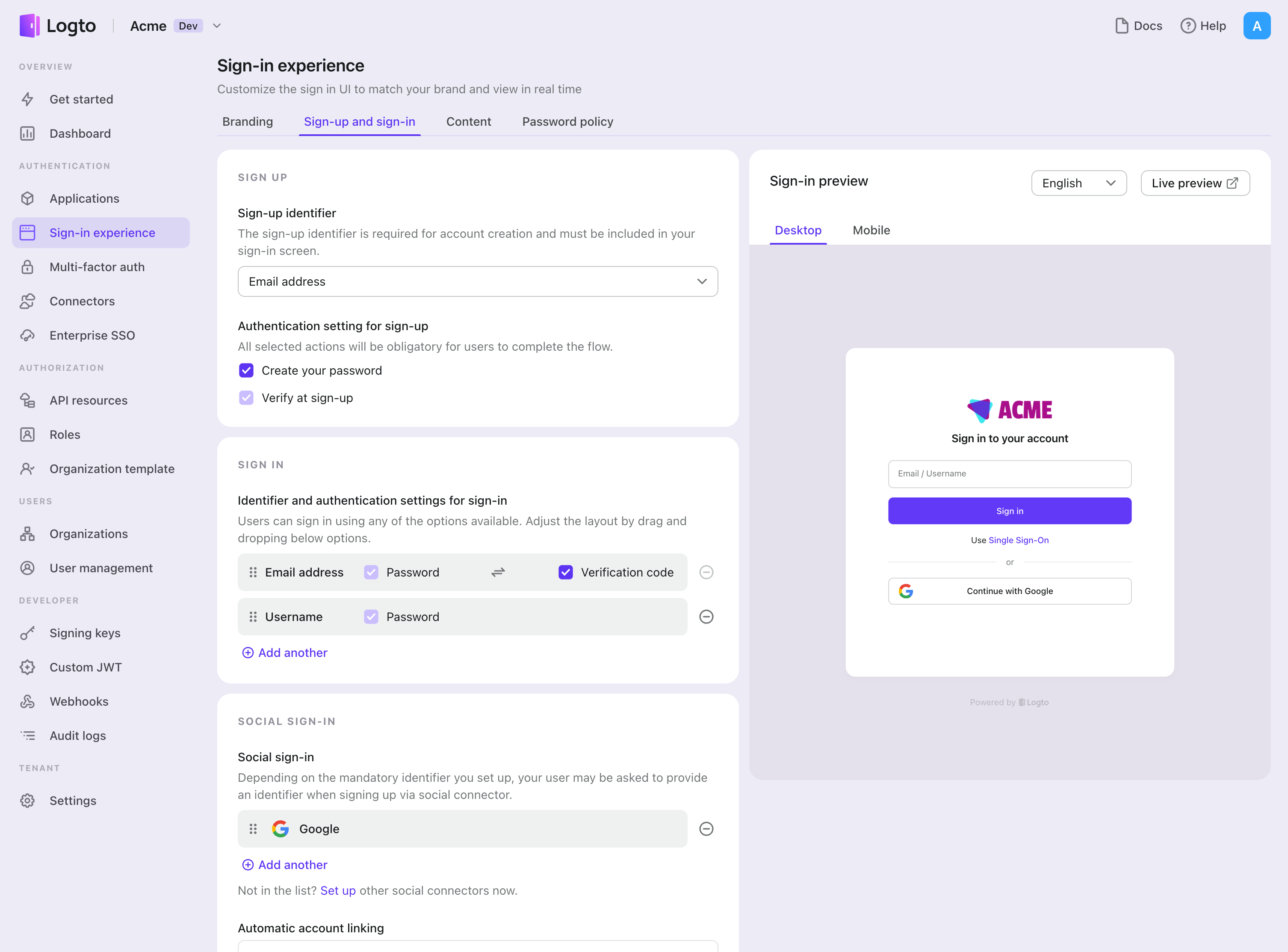
ソーシャルコネクターを正常に作成したら、サインイン体験で「GitHub (GitHub App) で続行」ボタンとして有効にすることができます。
- Console > サインイン体験 > サインアップとサインイン に移動します。
- (オプション)ソーシャルログインのみが必要な場合は、サインアップ識別子に「該当なし」を選択します。
- 設定済みの GitHub (GitHub App) コネクターを「ソーシャルサインイン」セクションに追加します。
テストと検証
iOS (Swift) アプリに戻ります。これで GitHub (GitHub App) を使用してサインインできるはずです。お楽しみください!
さらなる読み物
エンドユーザーフロー:Logto は、MFA やエンタープライズシングルサインオン (SSO) を含む即時使用可能な認証 (Authentication) フローを提供し、アカウント設定、セキュリティ検証、マルチテナント体験の柔軟な実装のための強力な API を備えています。
認可 (Authorization):認可 (Authorization) は、ユーザーが認証 (Authentication) された後に行えるアクションやアクセスできるリソースを定義します。ネイティブおよびシングルページアプリケーションの API を保護し、ロールベースのアクセス制御 (RBAC) を実装する方法を探ります。
組織 (Organizations):特にマルチテナント SaaS や B2B アプリで効果的な組織機能は、テナントの作成、メンバー管理、組織レベルの RBAC、およびジャストインタイムプロビジョニングを可能にします。
顧客 IAM シリーズ:顧客(または消費者)アイデンティティとアクセス管理に関する連続ブログ投稿で、101 から高度なトピックまでを網羅しています。